
Lesson letter
Classquest duration: 45 minutes
Target audience: Ages from 8 to 12
In this class quest, the children learn that if they create original works, they as creators and their work are protected by law and when you can or cannot use someone else's work. Students consider using, posting, or selling the work of others. Can you freely use an image you find on Google? And can you just sell this image? In the Quest the students help Papi on the right path.
Learning goals
Students learn...
- they are creators of their creative work and have (copy) rights to it
- not everything on the internet can be used just like that and why that is the case. Learn that not all information on the internet can be used for free
- a lot of use of information is allowed if you deal with it in a media-wise way and respect the ownership of the creator
Link to DigComp*
- D3 content creation
- D4 safety, wellbeing, and responsible use
*DigComp (the Digital Competence Framework for Citizens) is an EU framework that describes the digital skills people need to use technology confidently, safely, and responsibly. For primary school teachers, it provides a clear reference for helping children learn basic skills such as finding information online, creating simple digital content, staying safe on the internet, and behaving respectfully in digital environments. DigComp supports a shared European understanding of what “being digitally competent” means at different ages.
Necessities
- Interactive board
- Create an account here in advance. If you want to practice a quest beforehand, click ‘practice’ at the start. This takes about half an hour.
Glossary
- Author: author is another word for creator. For example, the creator of a text, a drawing, a work of art or a song.
- Copyright: as a creator (author) you have rights over the work you create. This means that you as the author alone can decide about the use and sharing of your work. We often use the © symbol for this.
- Plagiarism: plagiarism is pretending that certain words or images are yours when they are not. By doing so you are violating the rights of the creator. It is therefore very important to always make clear where your information comes from. You must clearly state the source and/or ask permission from the creator.
- Own Use: If you only use someone else's work for yourself, for example a drawing of someone printed out, colored it and hang it in your room, that is of course allowed.
The lesson
Introduction - 10 min
Explain to the students you are going to talk about their rights when they have made an original text, drawing, photo or video and when you can or cannot use the work of others and that you will play a game about it together. Also tell them the following:
If you have made an original photo or drawing, you can decide whether and how your image may be used. If someone uses your image without considering you, that other person will not take your interests and rights as creator into account. There is copyright to protect you from that.
Introduction questions
- If I make a website, can I put an image on it that I found on Google?
- Can you download images from the internet for your speech or paper?
Core - 30 min
Start the quest on the interactive whiteboard. Indicate that you are now going to start the game and discuss rules that suit your class when you play a game on the interactive whiteboard.
How do I make the lesson more interactive?
- In the quest Sanne and Papi about copyright. This is described in the text. You can choose to have children read the text of a specific character (for example child X reads Sanne's text and child Y reads Papi's text).
- During the quest choices will have to be made. You can choose to use an active work form for this. For example: If you think Papi can use the picture, you can stand. If you think he shouldn't, you can sit on the floor.
- Do the class activities!
Class activities in the quest
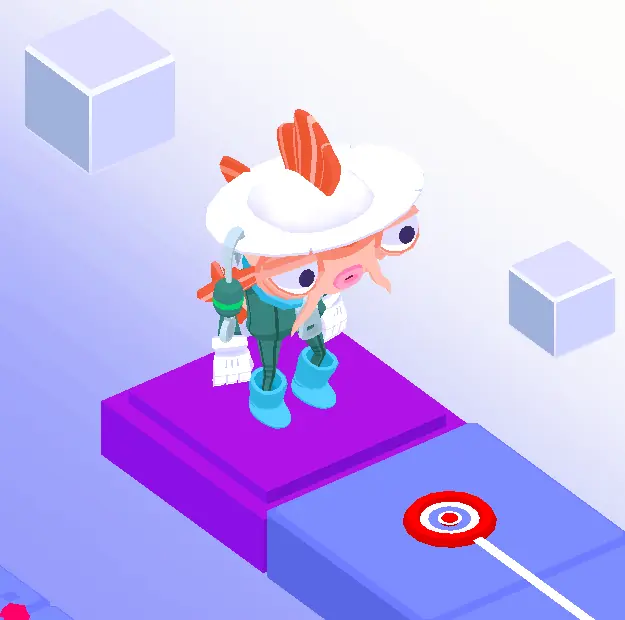
As a teacher, you can choose whether you want to do the activities (during the quest). You can of course also discuss the questions at another time!
The following questions are offered as classroom activities by Koi (see illustration):
- Discuss with the class: Isn't the maker putting it on the internet? Then can I use that too? Answer: Not without adhering to the terms that protect creator and user. A maker remains the only one who can decide what happens to his work. He/she can choose to put it on the internet, but that doesn't mean that you can decide what happens to it afterwards.
- Statement: It is good if someone shares your image online. Answer: That is not always the case. A creator may have certain ideas about how to use the image or where it's posted online, or maybe they want a fee for it. You can't determine that for a creator. Always ask permission before sharing anything.
- How can you use images or text?Answer: For your own study, practice or use: as an example for a discussion in an essay, paper or lecture if you name the author and the source or if you write or summarize the text in your own words.
Final assignment in the quest
At the end of the quest there is an assignment where 10 images can be seen. You will pass there by boat. Each image states how this image was used, where the image comes from and whether it is stated who the maker is.
Important! Assume that Papi just took everything from the internet. With that in mind, you decide together whether or not Papi can use the images in the manner described or not. Isn't that the case? Click on the image and indicate that it should be cleaned up.
Closing - 10 min
Ask the students what they have learned.
Final questions
- Statement: I can still print a cool drawing and hang it on my bedroom wall? Answer: Yes, because it is for personal use.
- Statement: I can still print a cool image and sell it on the royal market? Answer: No, unfortunately! Someone else worked really hard on this image. That person can also decide what happens to that image. Then you can't just sell that image. Always ask permission
Tips
- To add a dynamic touch, consider having students take turns reading the text, making the experience even more engaging.
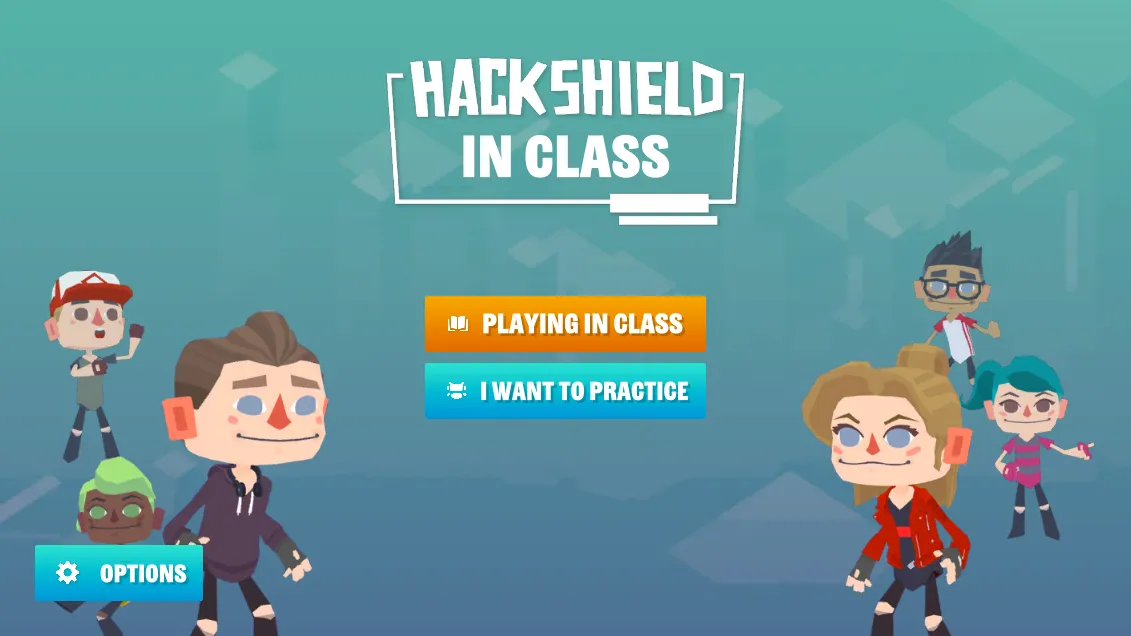
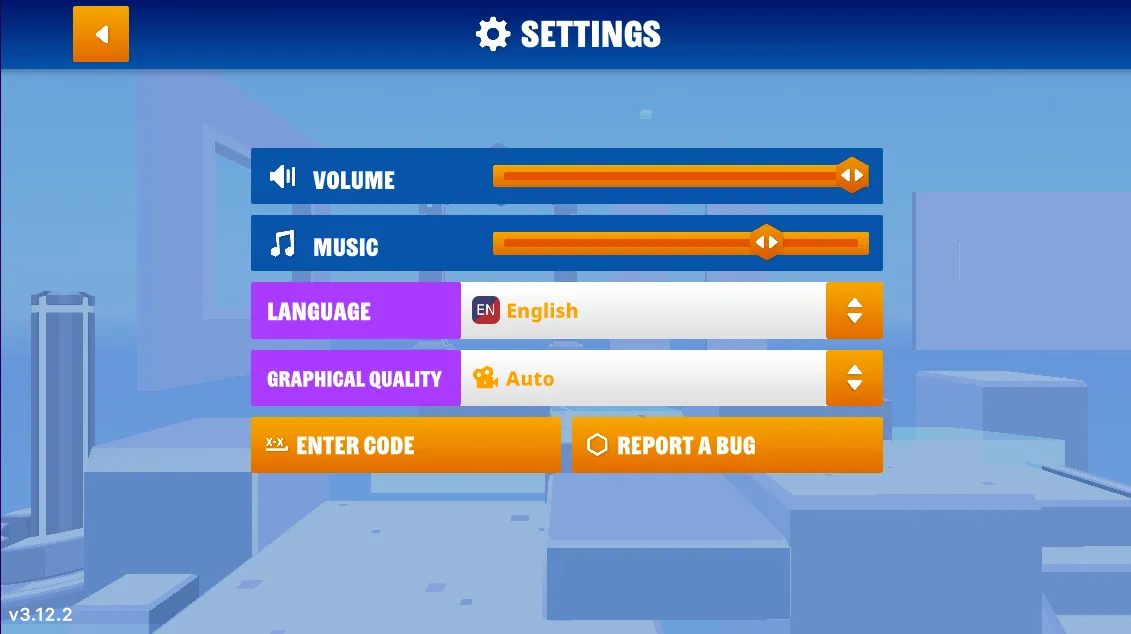
- If you prefer a silent quest, you have the option to turn off the sound. Simply navigate to the game's options menu, and you'll find the accompanying images on the right.
- Now, let's dive into the heart of our quest! Navigate to the game’s options menu where you can turn off the music.
Learn more
- Video - Fellows and Associates: Intellectual Property for Kids, Ep.3: What is Copyright?